IPcook User Guide: A Quick Start to Proxy Setup and Configuration

Welcome to the IPcook user guide. Whether you are just getting started with proxies or already running large-scale automation, this guide will walk you through every step. From creating your account and choosing a plan to configuring proxies, assigning access, monitoring usage, and setting IPcook as your system proxy, everything you need is here.
Quick Start for New Users
If you are new to proxy tools, this section shows you how to set up your IPcook account and choose a proxy plan that fits your needs. After signing up, you can start managing everything directly from the dashboard.
💡 Tip: Just joined? Start your free trial and get 100MB of residential proxy traffic, totally free.
1. Sign Up & Verify Email
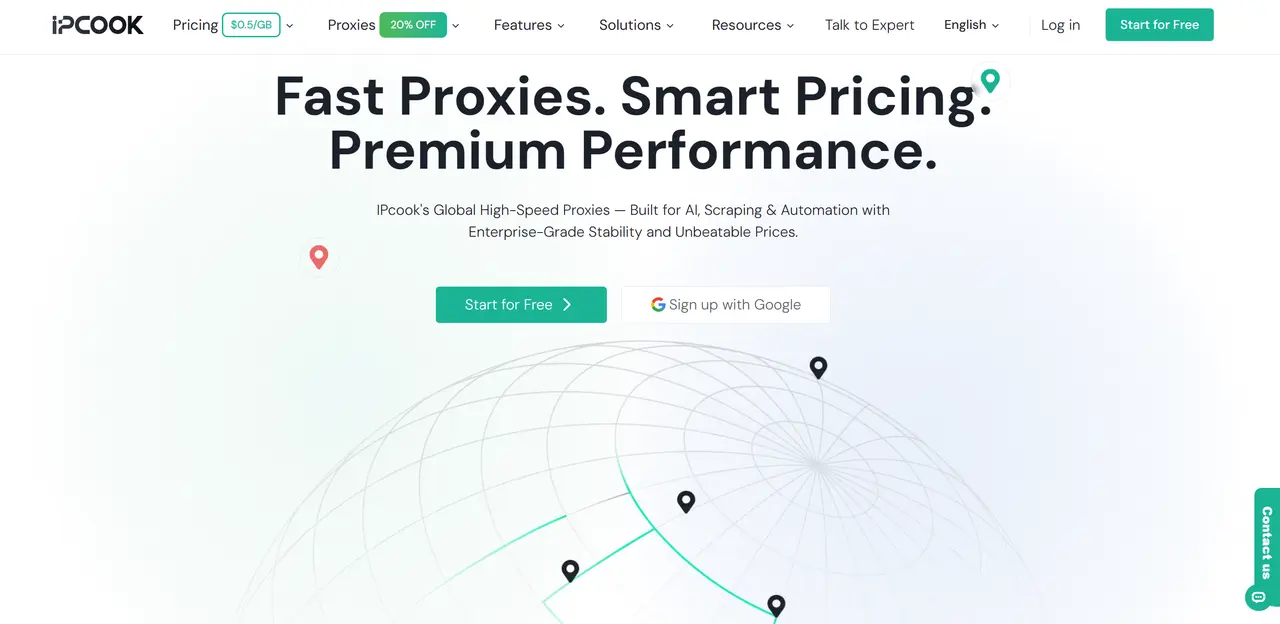
Visit IPcook. For first-time users, click Start for Free; otherwise, click Log in at the upper right. Create your account using email or Google, then verify your email via the confirmation link.
2. Log In & Access Dashboard
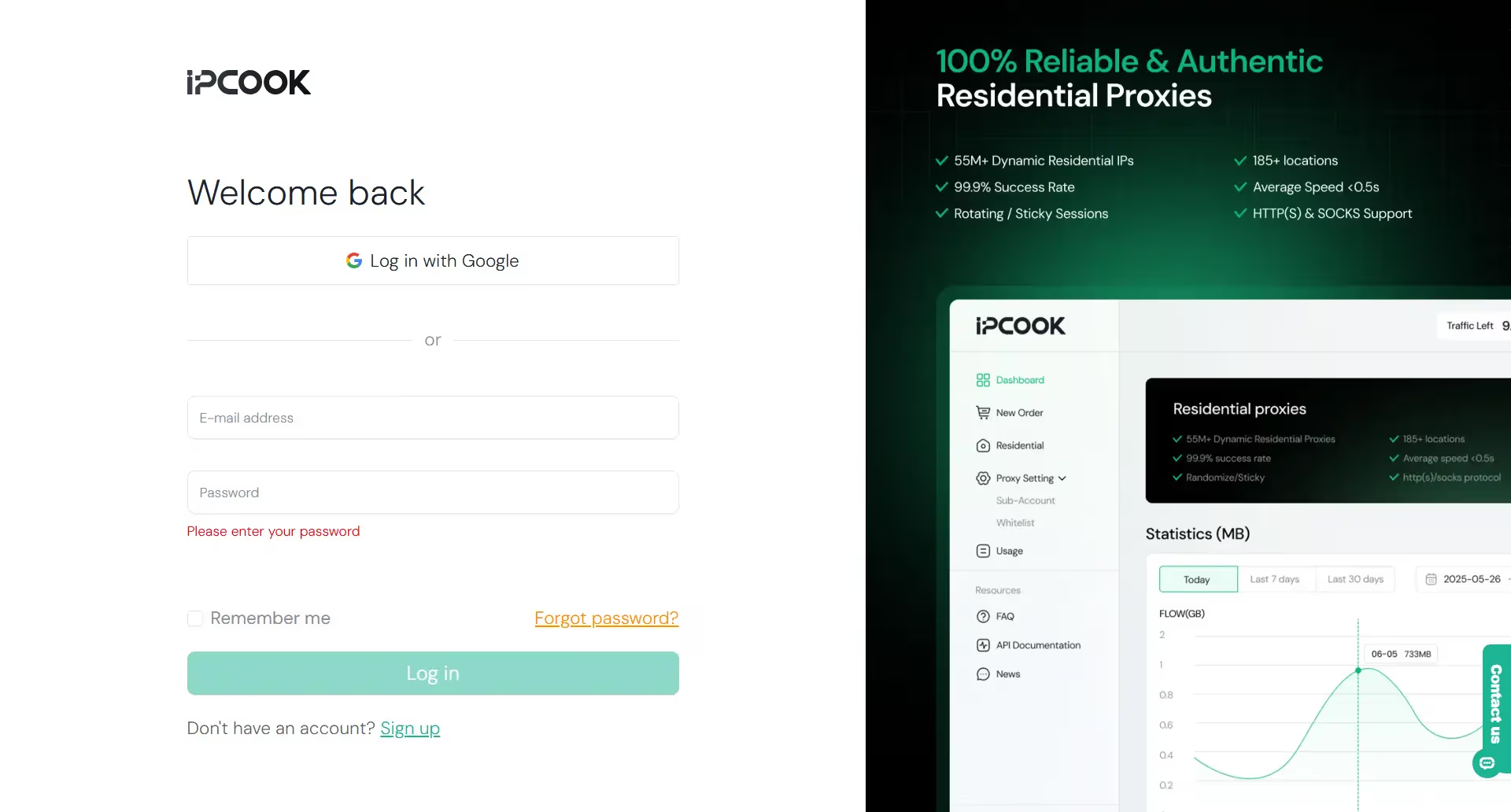
Log in to your account and open the dashboard to start managing your proxies.
Dashboard Overview
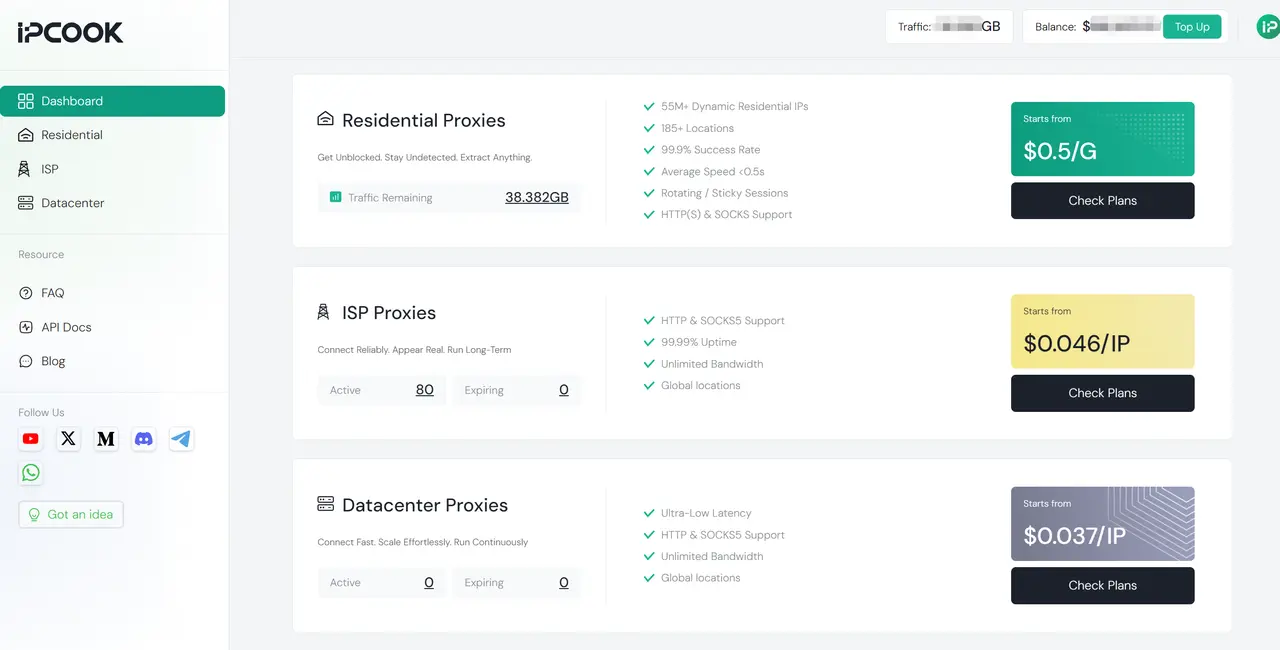
After logging in, the dashboard is your main control panel. Here, you can check your traffic, balance, and quickly access each proxy type.
At the top right, you’ll see your current Traffic, Balance, and the Top Up button.
In the main area, the Dashboard shows three proxy cards: Residential Proxies, ISP Proxies, and Datacenter Proxies. Each card gives you a quick overview of the product’s key features and your current usage or available resources. If you already know which proxy type you need, click the matching item in the sidebar or Check Plans to get started quickly.
Start Using Residential Proxy
Follow these steps to set up your Residential Proxy with IPcook.
Step 1. Buy Residential Proxies
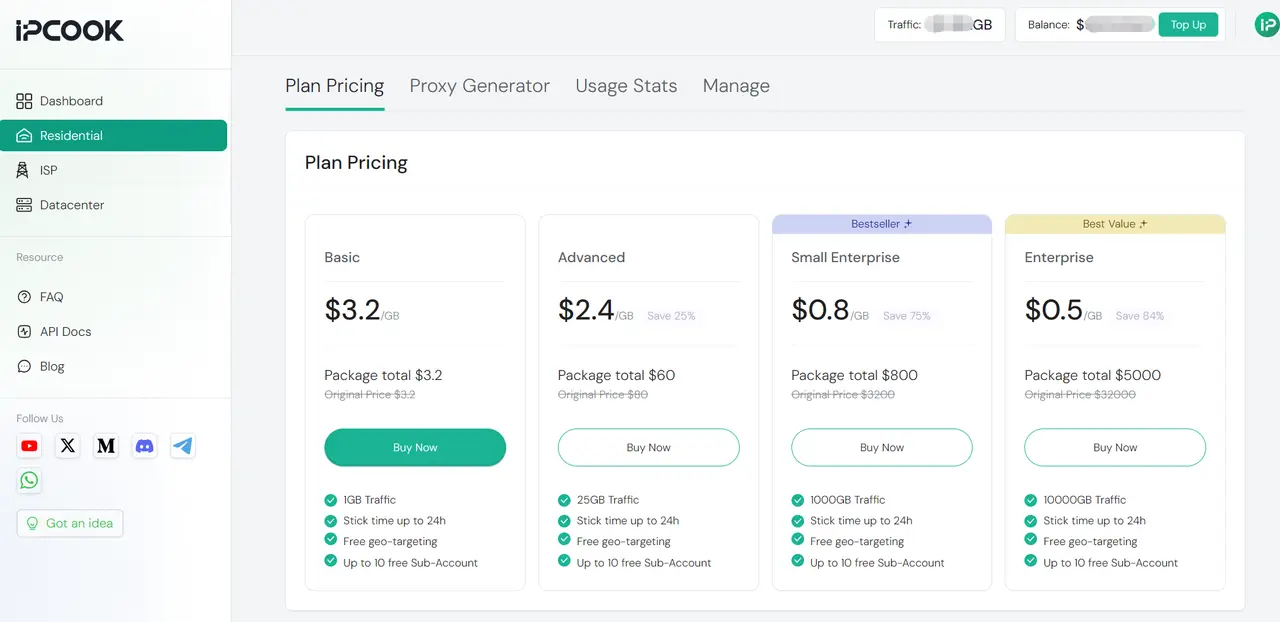
Navigate to Residential in the left menu. On Plan Pricing, choose your plan to buy. Each plan includes up to 24h sticky sessions, free geo-targeting, and 10 free sub-accounts.
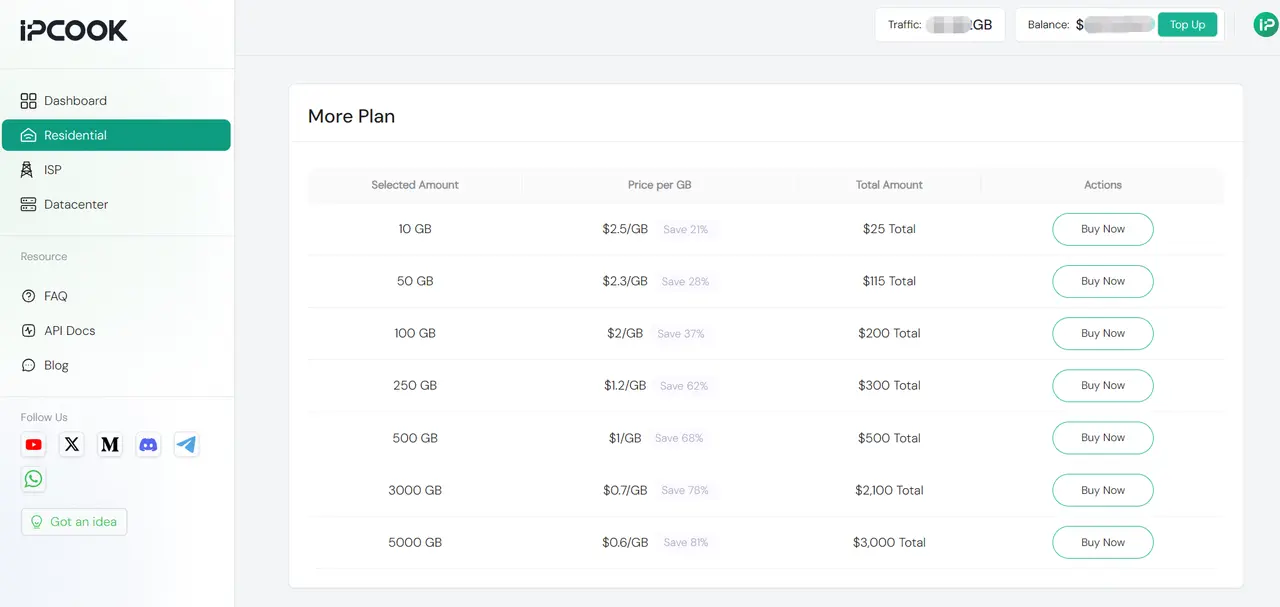
IPcook also offers More Plan options, including 10GB, 50GB, 100GB, 250GB, 500GB, 3000GB, and 5000GB, with better discounts on larger volumes. For larger projects or custom needs, contact our live chat team for help.
🛒 Complete Your Purchase in a Few Clicks
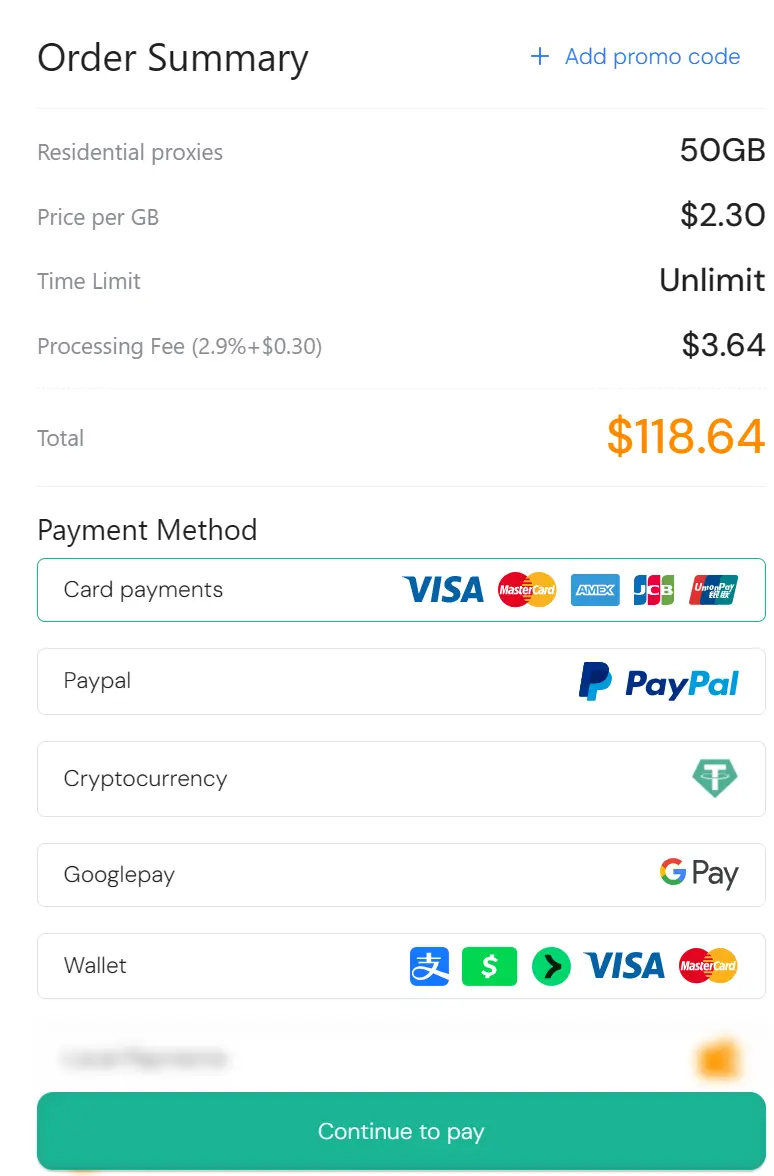
When you select a plan, an Order Summary is shown before you confirm the price. Then complete the payment using your preferred method: card payments, PayPal, cryptocurrency, Google Pay, wallet, balance, and local payments.
Click Continue to Pay to complete your purchase. Your traffic will appear in the dashboard as soon as the payment is completed. If it does not appear immediately, refresh the page or contact live chat for help.
Step 2. Use the Proxy Generator
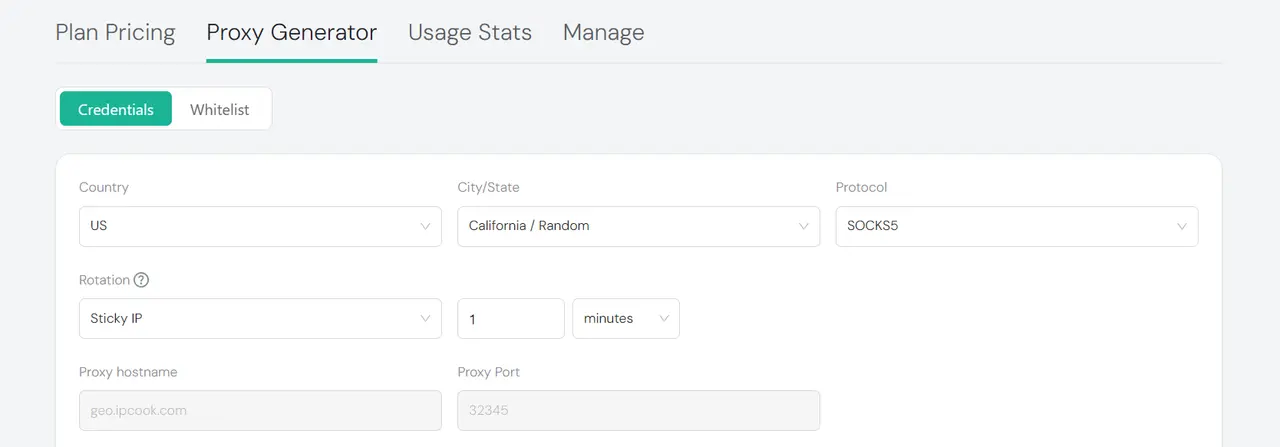
Navigate to Proxy Generator. Here, you can generate residential proxies via either Credentials or Whitelist authentication.
Generate Proxies via Credentials
Choose Country, City/State, Protocol, and Rotation.
Set City/State to Random if you do not need a specific location. Use HTTP for most websites and browser-based tasks. Use SOCKS5 only if your tool specifically requires it.
For Rotation, choose Randomize IP to change IPs frequently, or Sticky IP to keep the same IP for a longer session. Sticky sessions can last from 1 minute to 24 hours.
The page will display the default Proxy Hostname and Port.
The next step is to decide who should use them. You can assign proxies to an existing sub-account from the dropdown, and the username and password will auto-fill for you. If you do not have a sub-account yet, click Add Sub-Account to create one.

Generate Proxies via Whitelist
Prefer a no-login setup? Switch to Whitelist instead. This allows requests from your whitelisted public IP to access the proxies without a username or password. You can then choose the country, protocol, and quantity, and generate proxy list using IP-based authentication.
For more details, see Manage Access: Sub-Accounts and Whitelist below.
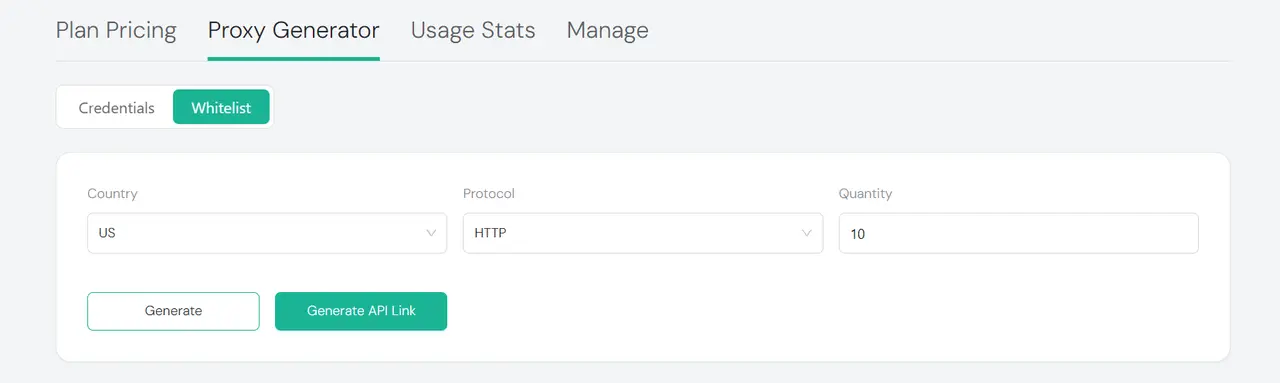
Generate Your Proxy List or API Link
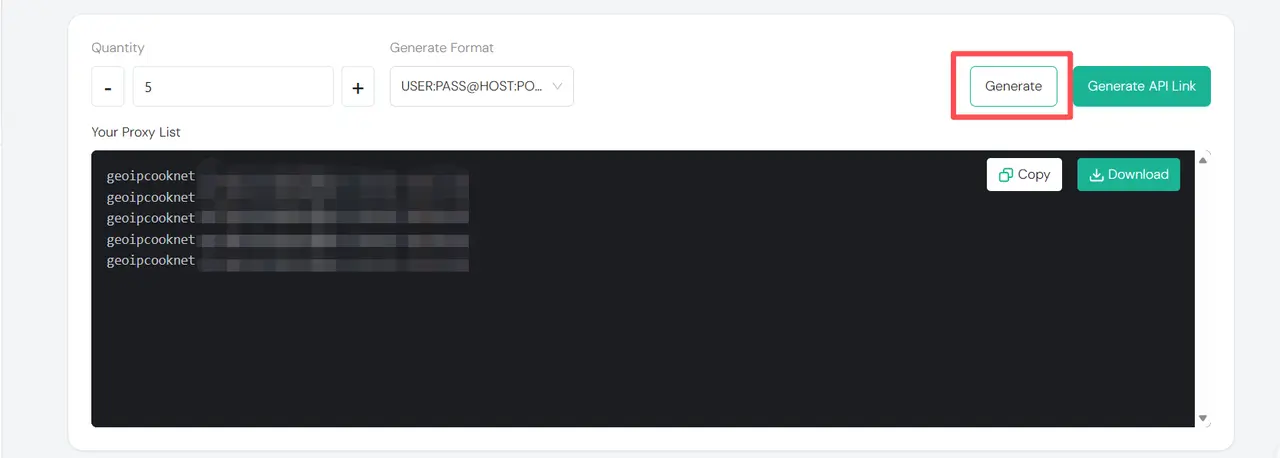
With everything set, you can now generate your proxies. Set the Quantity and choose the Generate Format that fits your tools, such as USER:PASS@HOST:PORT.
Click Generate to create your proxy list. You can copy or download it right away.
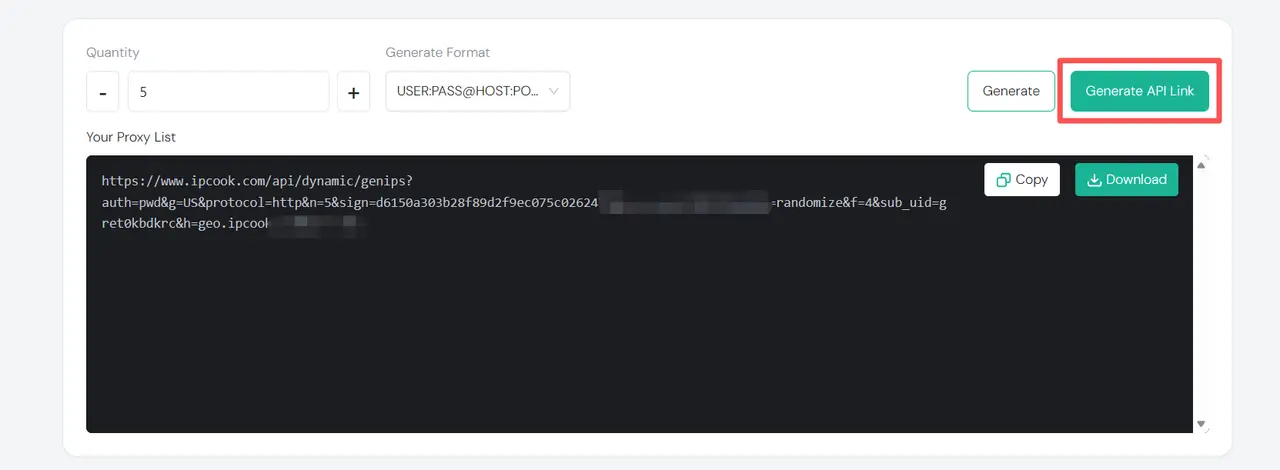
For larger projects or automated workflows, click Generate API Link instead. This creates a signed API URL that can return fresh proxies automatically.
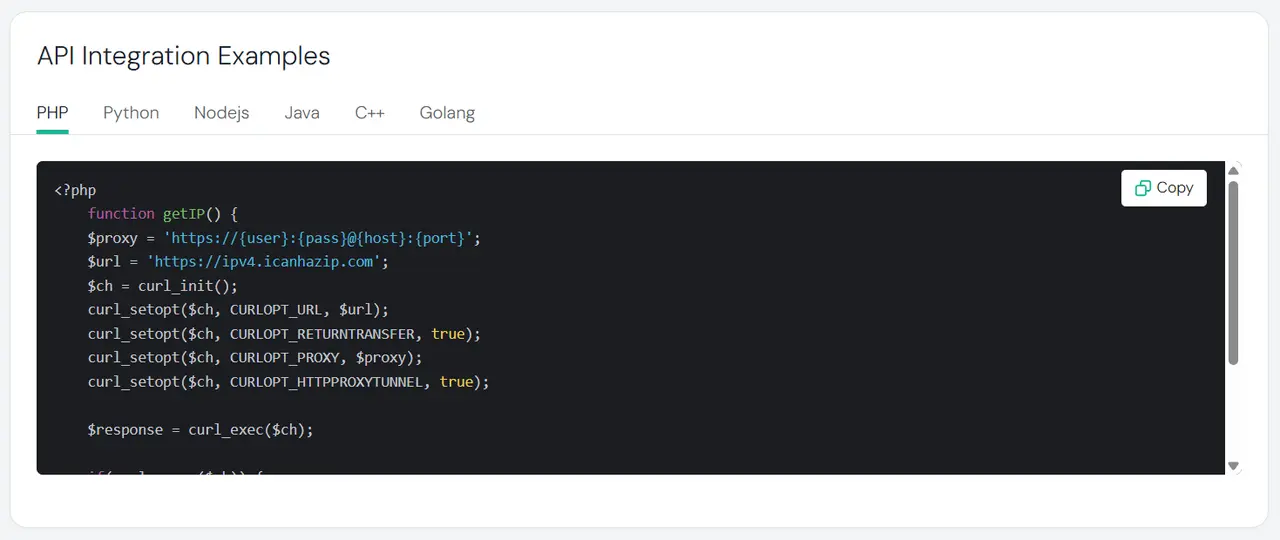
API Integration Examples
Below the generator, IPcook also provides ready-to-use API integration examples in PHP, Python, Node.js, Java, C++, and Golang.
Step 3. Manage Access: Sub-Accounts and Whitelist
Head to Manage. Here, you can manage access to your residential proxies using either Sub-Accounts or IP Whitelist authentication.
Sub-Accounts
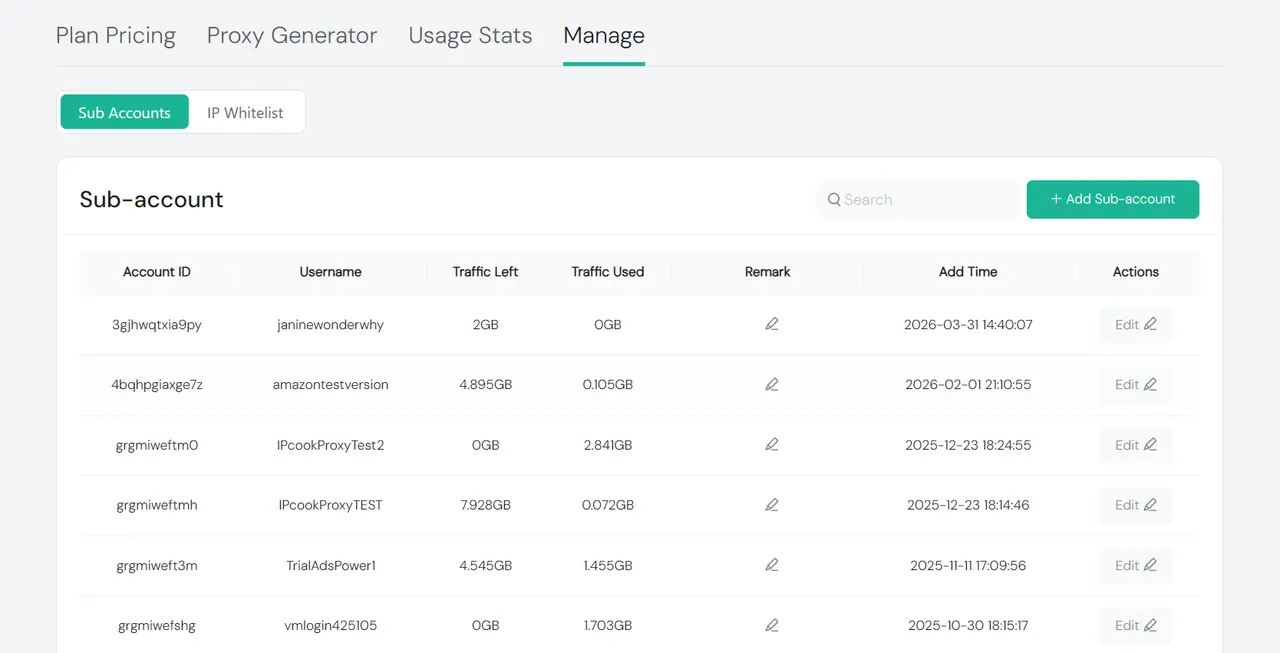
Sub-accounts let you create separate credentials for different projects, users, or tools. Each one can have its own traffic allocation, which makes it easier to split usage across teams or tasks.
To add a sub-account:
Open Sub Accounts under Manage.
Click Add Sub-account in the top right corner.
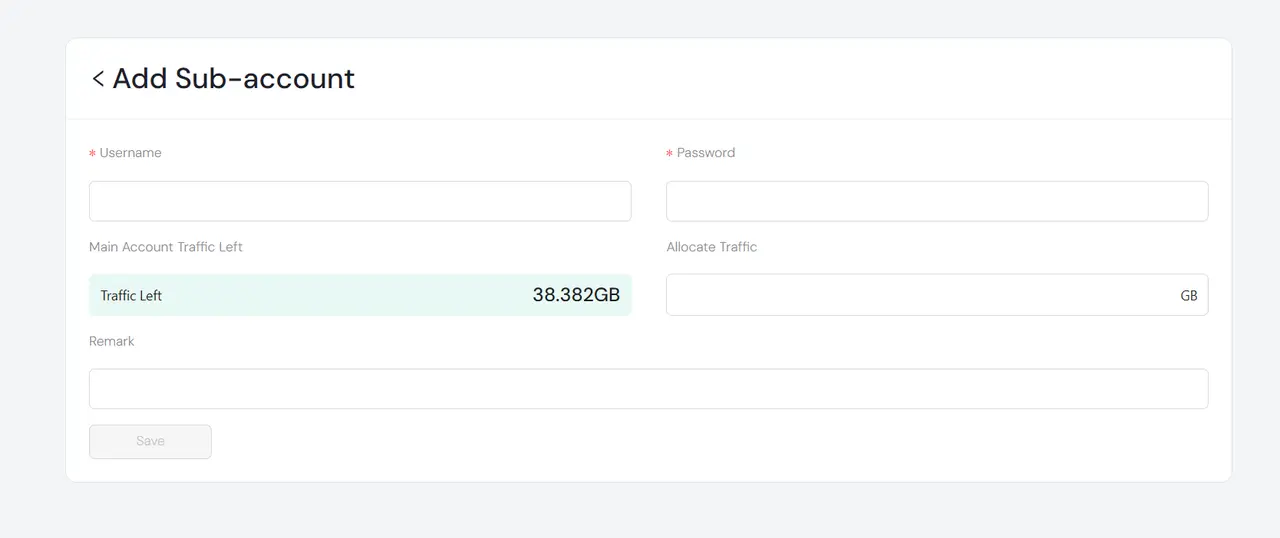
On the Add Sub-account page, enter a Username and Password, set the amount under Allocate Traffic, and add a Remark if needed.
Click Save. The new sub-account will appear in the list and can be used in the Proxy Generator.
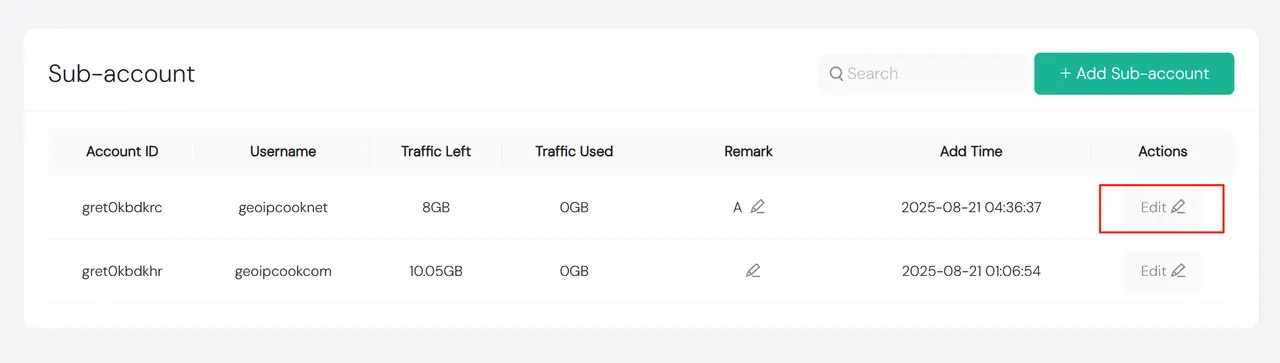
To edit a sub-account:
Click Edit next to the sub-account you want to update.
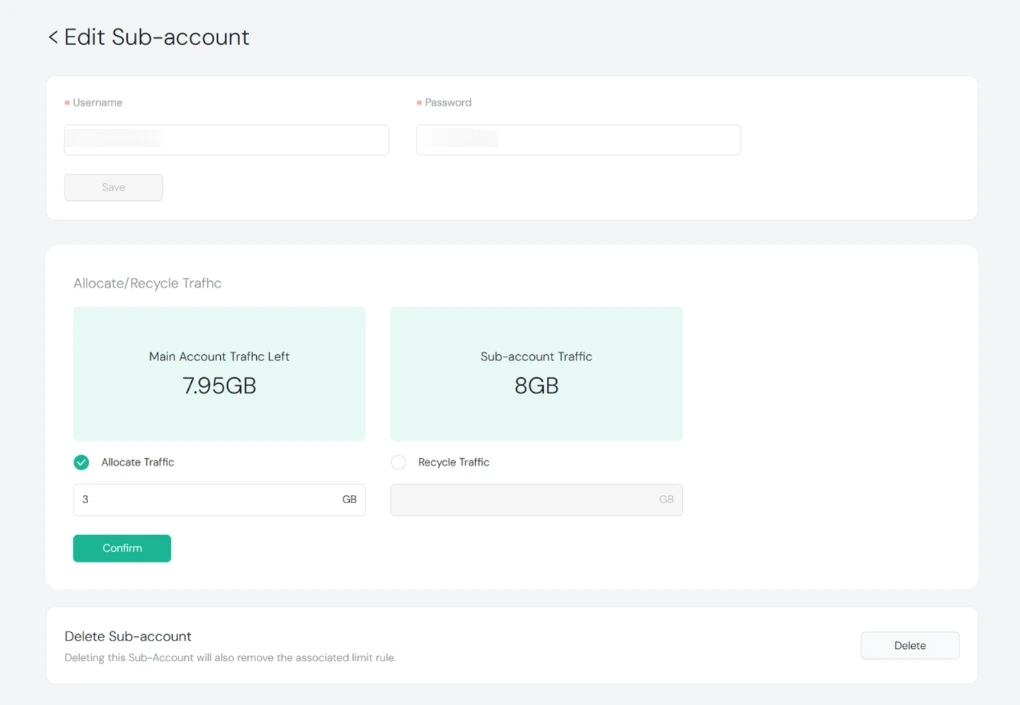
On the edit page, you can update credentials, adjust traffic, recycle unused traffic, or delete the sub-account.
IP Whitelist
If you prefer IP-based authentication, open IP Whitelist. This allows proxy access from a specific public IP without requiring a username or password.
To add a whitelist IP:
Enter your public IP in the Add IP field.
Click Add IP to save it.
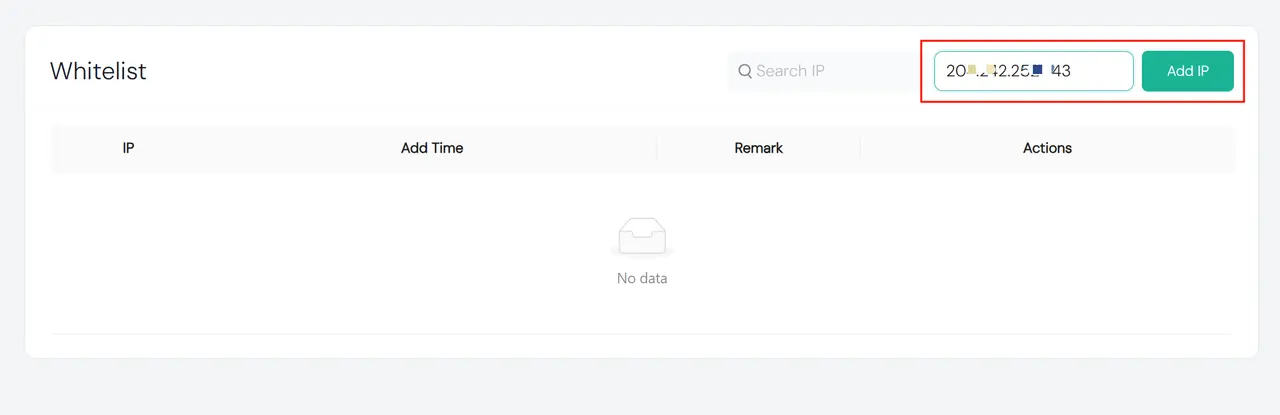
After the IP is added, it appears in the list below. From there, you can review the Add Time, add a Remark, search existing entries, or Delete an IP when it is no longer needed.
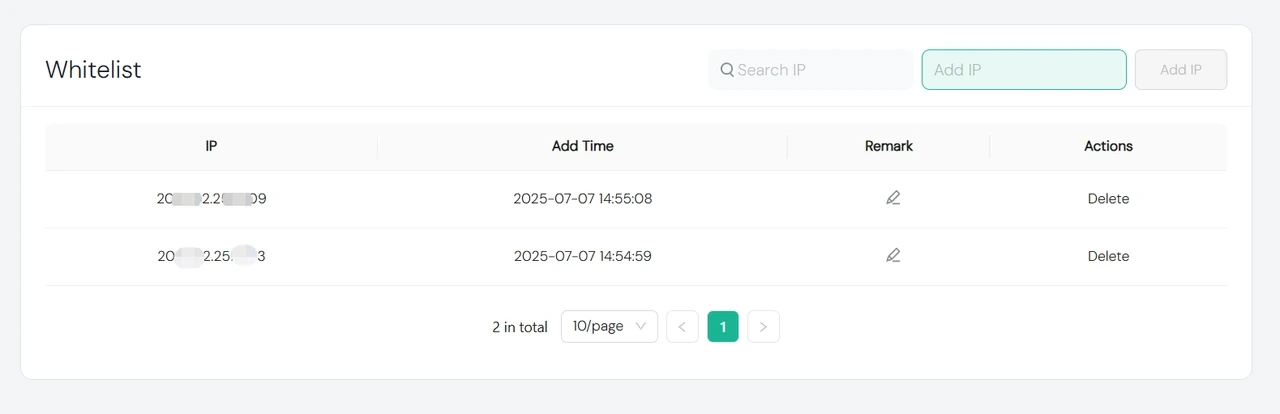
Tip: For best results, use IP Whitelist only on stable networks. If your public IP changes often, username and password authentication is usually the better choice.
Step 4. Monitor Proxy Usage
Navigate to Usage Stats to track how your residential proxy traffic is being used.
Usage Overview
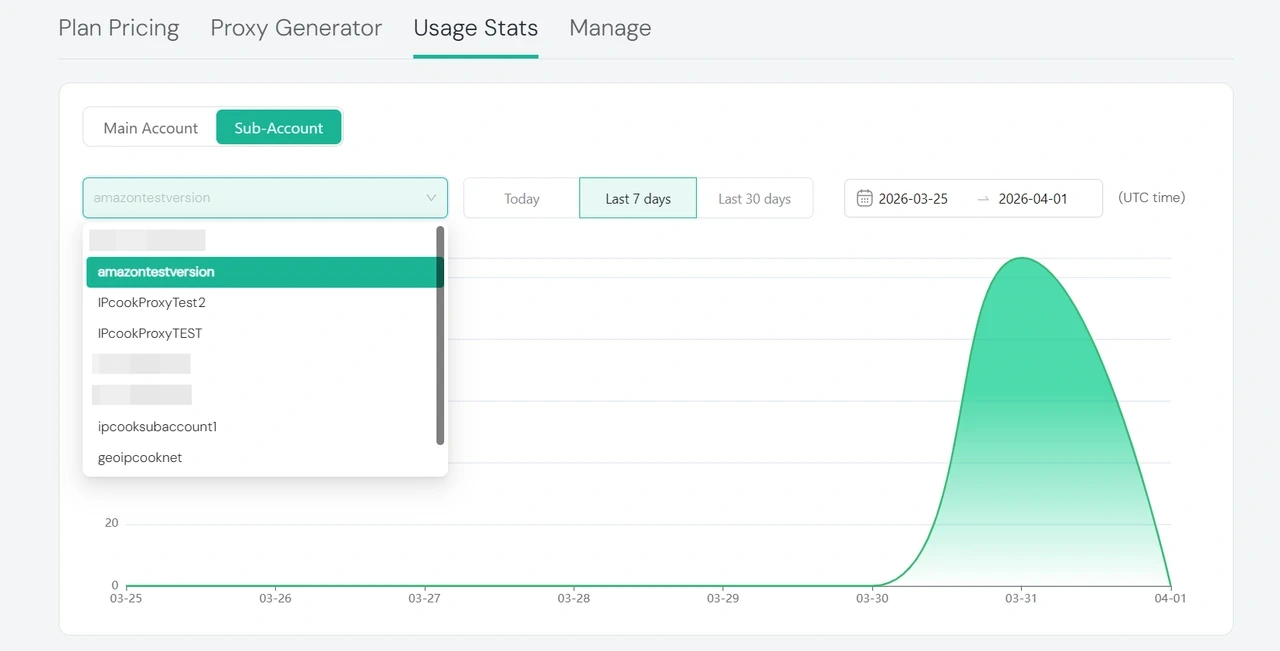
You can switch between Main Account and Sub-Account views. You can also filter data by Today, Last 7 days, Last 30 days, or a custom date range.
In Sub-Account view, select an account from the dropdown to check usage for a specific sub-account.
Traffic Changes
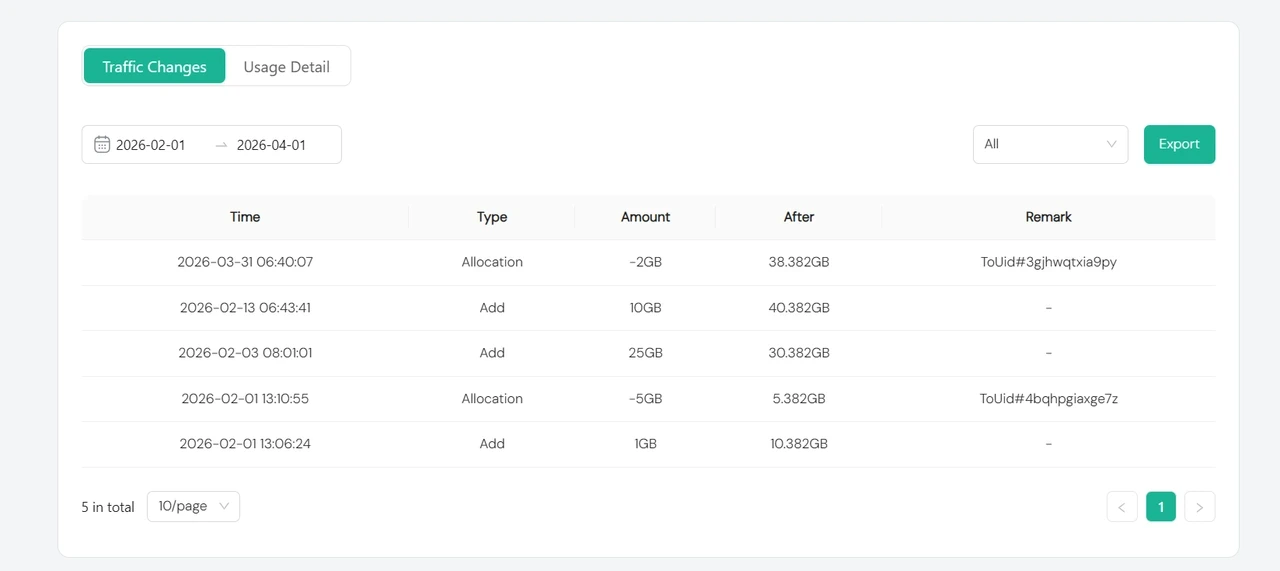
Traffic Changes shows a record of traffic updates in your account. This includes actions such as adding traffic, allocating traffic to a sub-account, using traffic, or recycling unused traffic back to the main account.
Each record shows the Time, Type, Amount, After, and Remark. You can filter the records by date and change type, then export them when needed.
Usage Detail
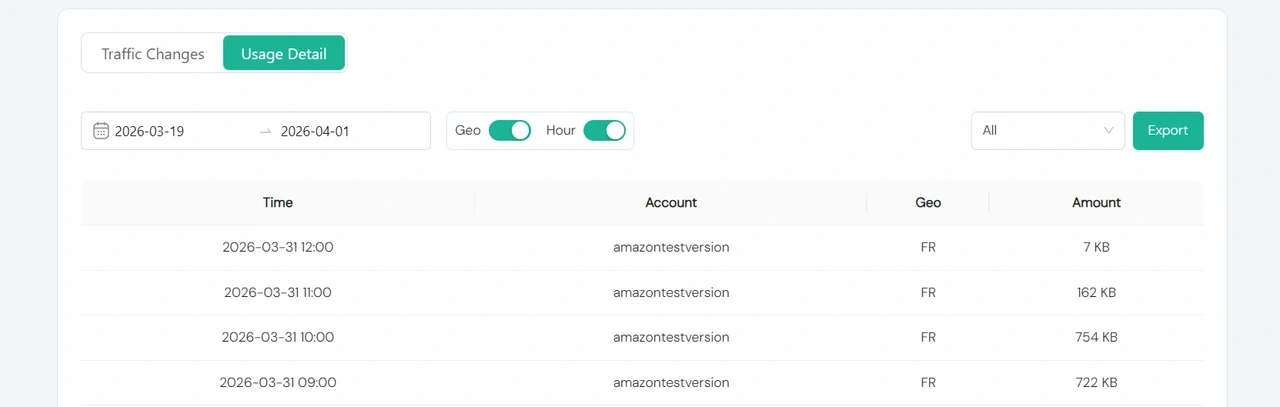
Usage Detail shows how much traffic has been used during the selected period. You can filter the data by date and account, switch between Geo and Hour views, and export the data for analysis.
📚 Need More Residential Proxy Use Cases? Read These
Start Using ISP Proxies
Follow these steps to buy and manage ISP Proxy with IPcook.
Step 1. Buy ISP Proxies
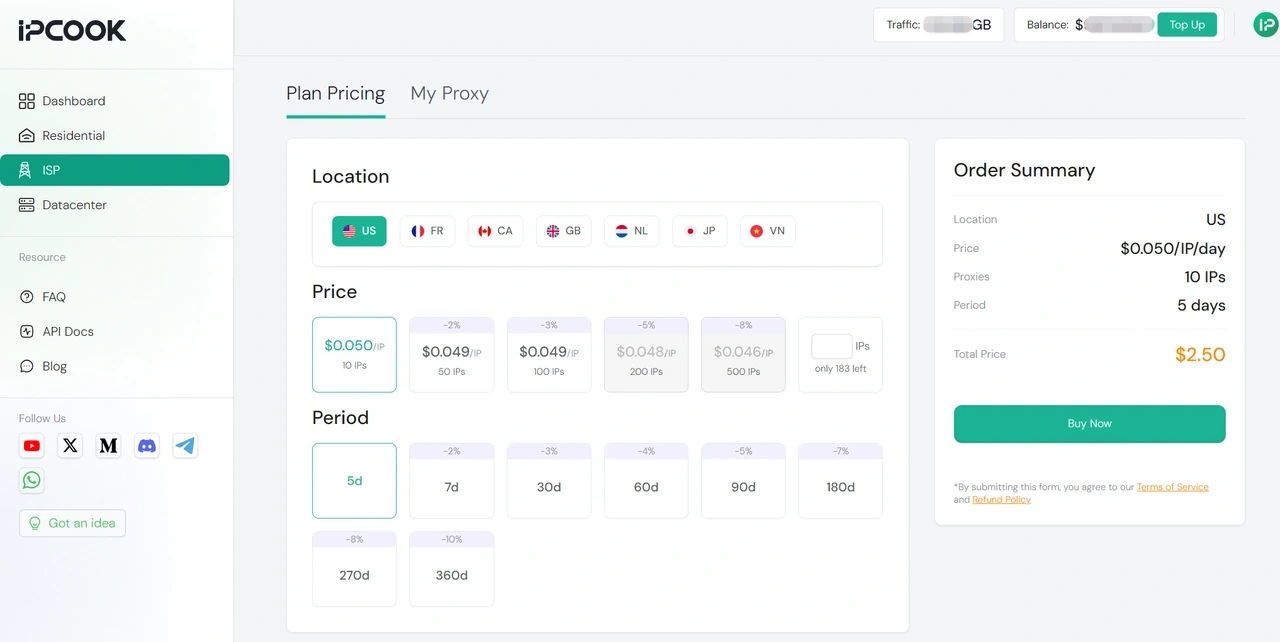
Navigate to ISP in the left menu. On Plan Pricing, choose the Location, number of IPs, and period you need. Review the Order Summary on the right, then click Buy Now.
Step 2. Manage Your ISP Proxies
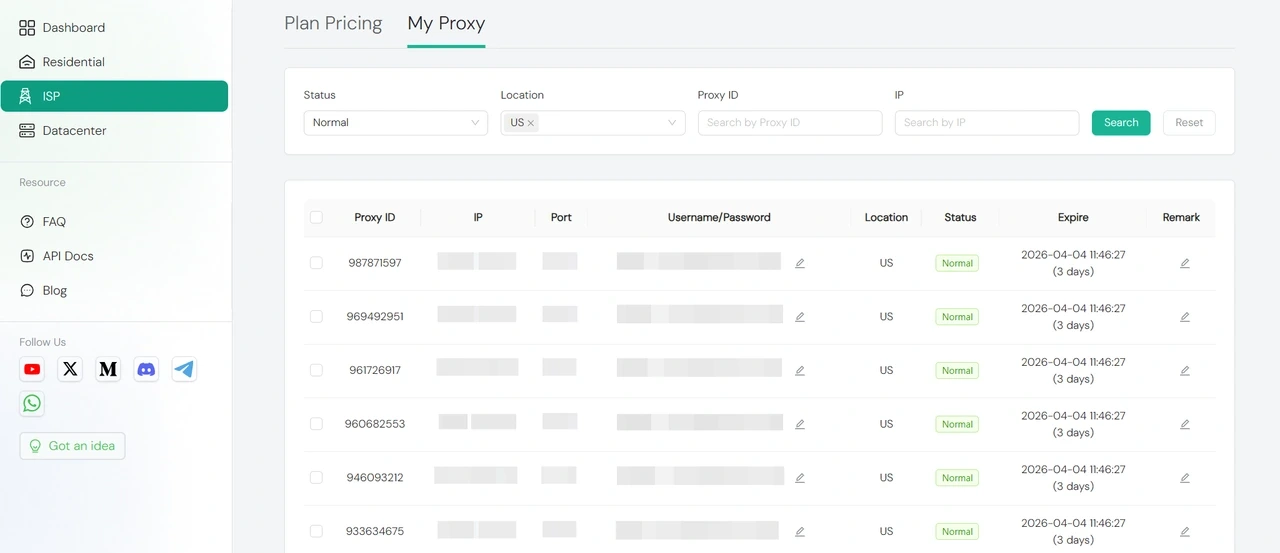
After purchase, open My Proxy to view your ISP proxies. Here, you can search and filter proxies by Status, Location, Proxy ID, or IP.
The list shows your purchased ISP proxies, along with their connection details, status, and expiration time.
You can also select multiple proxies for batch actions. After selecting them, use the buttons at the bottom to Download, Batch Renew, Change User/Password, or add a Remark.

📚 Need More ISP Proxy Use Cases? Read These
How to Safely Warm Up Multiple Facebook Accounts: Best Strategies
How to Create Bulk Instagram Accounts: Tools & Tips for Growth
Start Using Datacenter Proxies
Follow these steps to buy and manage Datacenter proxy with IPcook.
Step 1. Buy Datacenter Proxies
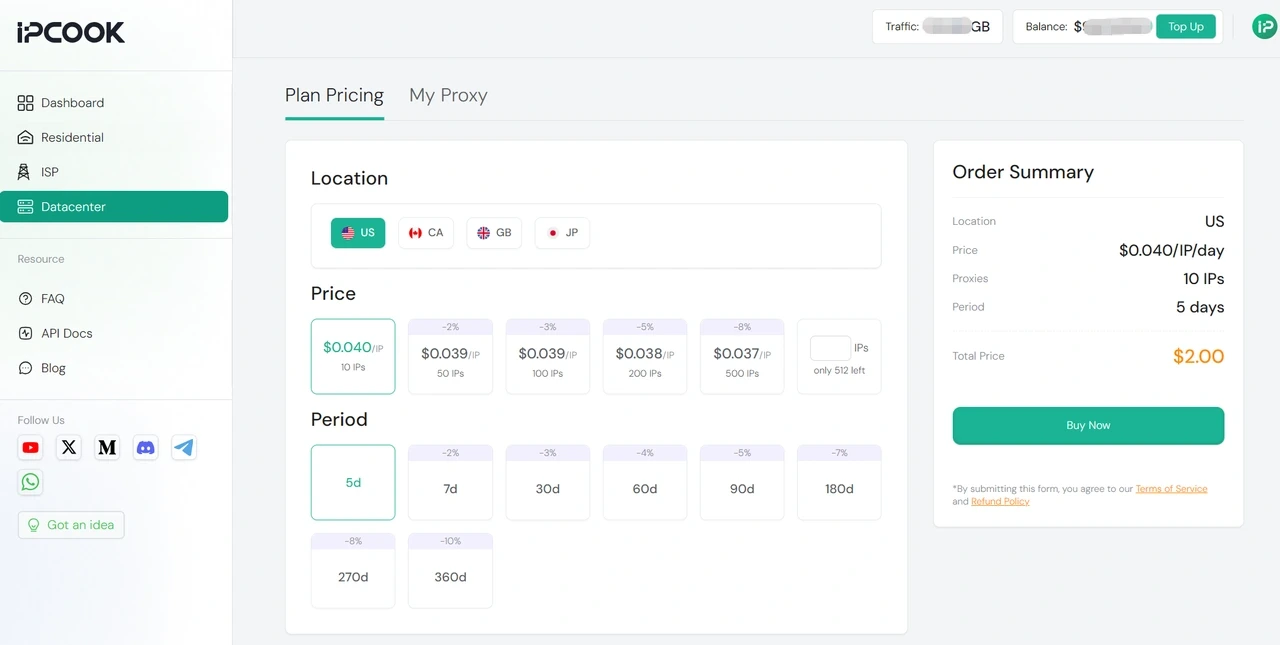
Navigate to Datacenter in the left menu. On Plan Pricing, choose the Location, number of IPs, and period you need. Review the Order Summary on the right, then click Buy Now.
Step 2. Manage Your Datacenter Proxies
After purchase, open My Proxy to view your datacenter proxies. Here, you can search and filter proxies by Status, Location, Proxy ID, or IP.
The list shows your purchased datacenter proxies, along with their connection details, status, and expiration time.
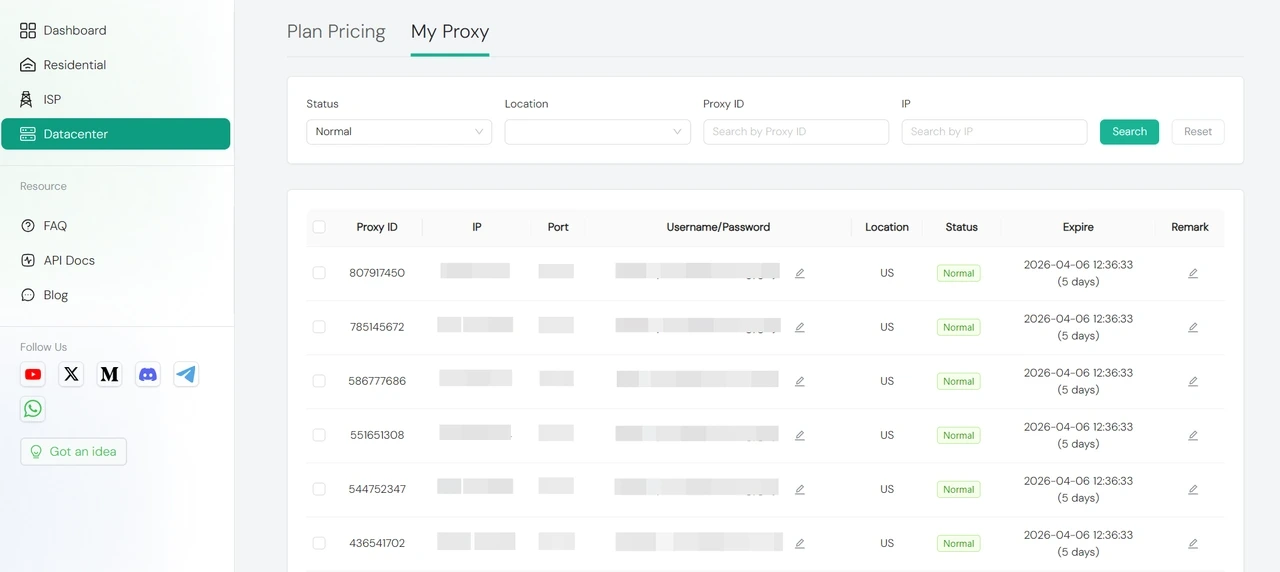
You can also select multiple proxies for batch actions. After selecting them, use the buttons at the bottom to Download, Batch Renew, Change User/Password, or add a Remark.

Set up IPcook on Your Devices
Your proxies are ready to use. It’s time to put them into action. You can connect to IPcook in many ways. The two simplest options are to set it as your system proxy on Windows or macOS for full coverage, or to use a browser extension if you only need proxy inside the browser. The following sections will show you how.
Proxy Setup on Windows
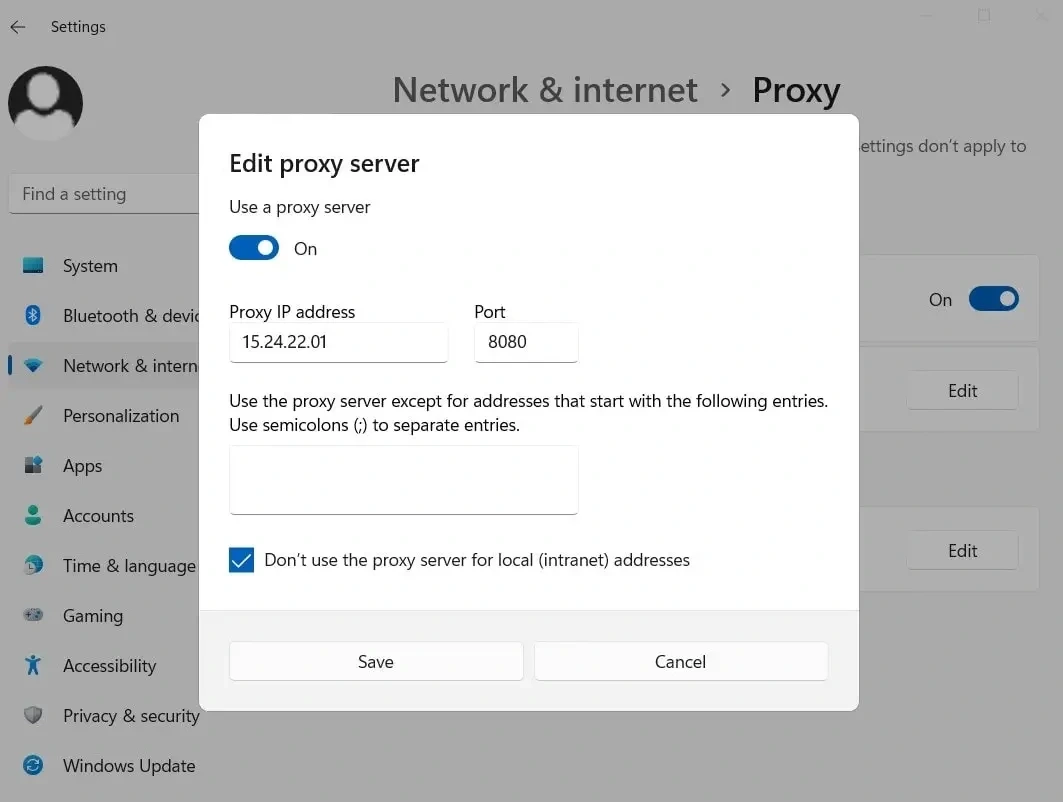
Open Settings → Network & Internet → Proxy
Under Manual proxy setup, turn on Use a proxy server
Enter the IPcook server address (e.g.,
geo.IPcook.com) and port (e.g.,33123)When prompted, enter your username and password
Click Save
Proxy Setup on macOS
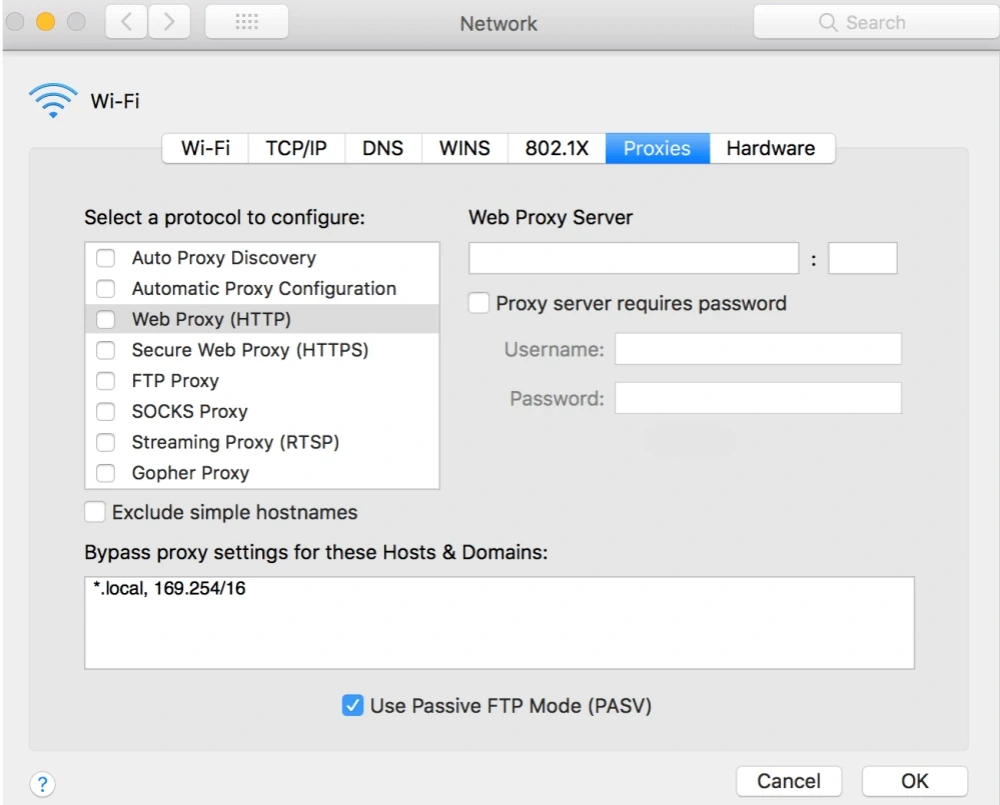
Open System Settings → Network
Select your active network (e.g., Wi-Fi), then click Details
Go to the Proxies tab
Enable Web Proxy (HTTP) or SOCKS Proxy
Enter the IPcook proxy server and port, then check "Proxy server requires password" and enter your username and password if needed.
Click OK and Apply
Proxy Setup in Browser
If you only want your browser traffic to go through IPcook, the easiest option is using a proxy extension. This avoids changing system settings and keeps other apps unaffected.
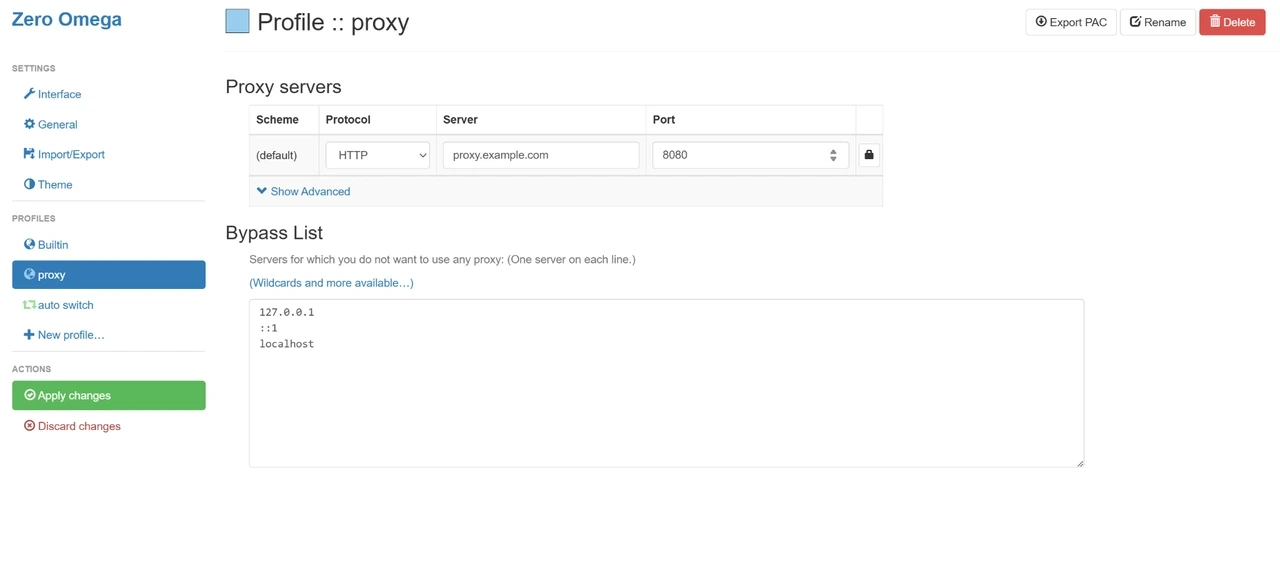
Install a proxy manager like ZeroOmega from the Chrome Web Store.
Create or select a proxy profile, then choose the Protocol. Enter the IPcook server address, the correct port, and your login credentials.
Click Apply changes to activate the proxy. From now on, Chrome will route your browsing traffic through IPcook.
Tip: A browser-only setup is great for quick testing, account management, or scraping directly in tabs. It gives you flexibility without touching your system-wide settings.
Final word
You've now completed the full IPcook setup process. From creating your account and choosing a plan to generating proxies and managing usage, you're ready to get started with confidence.
If you haven't tried IPcook yet, now's the perfect time to explore your first plan. Our no-expiry packages let you set up proxies at your own pace. Click below to launch your first proxy in minutes.